Workflow videos
Screen recordings of the Translate Chat workflow: upload screenshots, add guidance, configure settings, and view the translated conversation image.
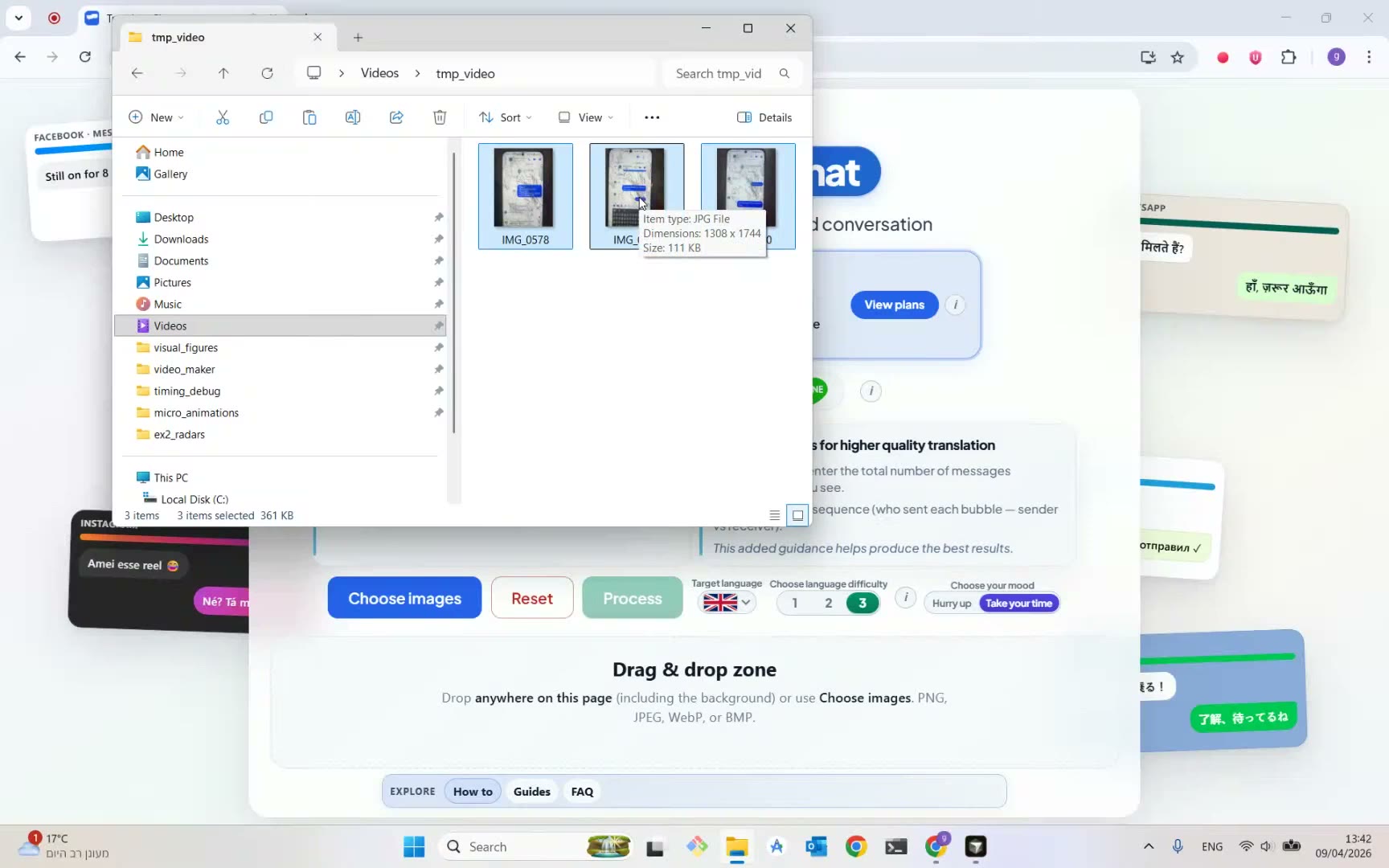 Add input screenshotsWatch how to upload chat screenshots in conversation order on Translate Chat — drag and drop or Choose images (PNG, JPEG, WebP, BMP).
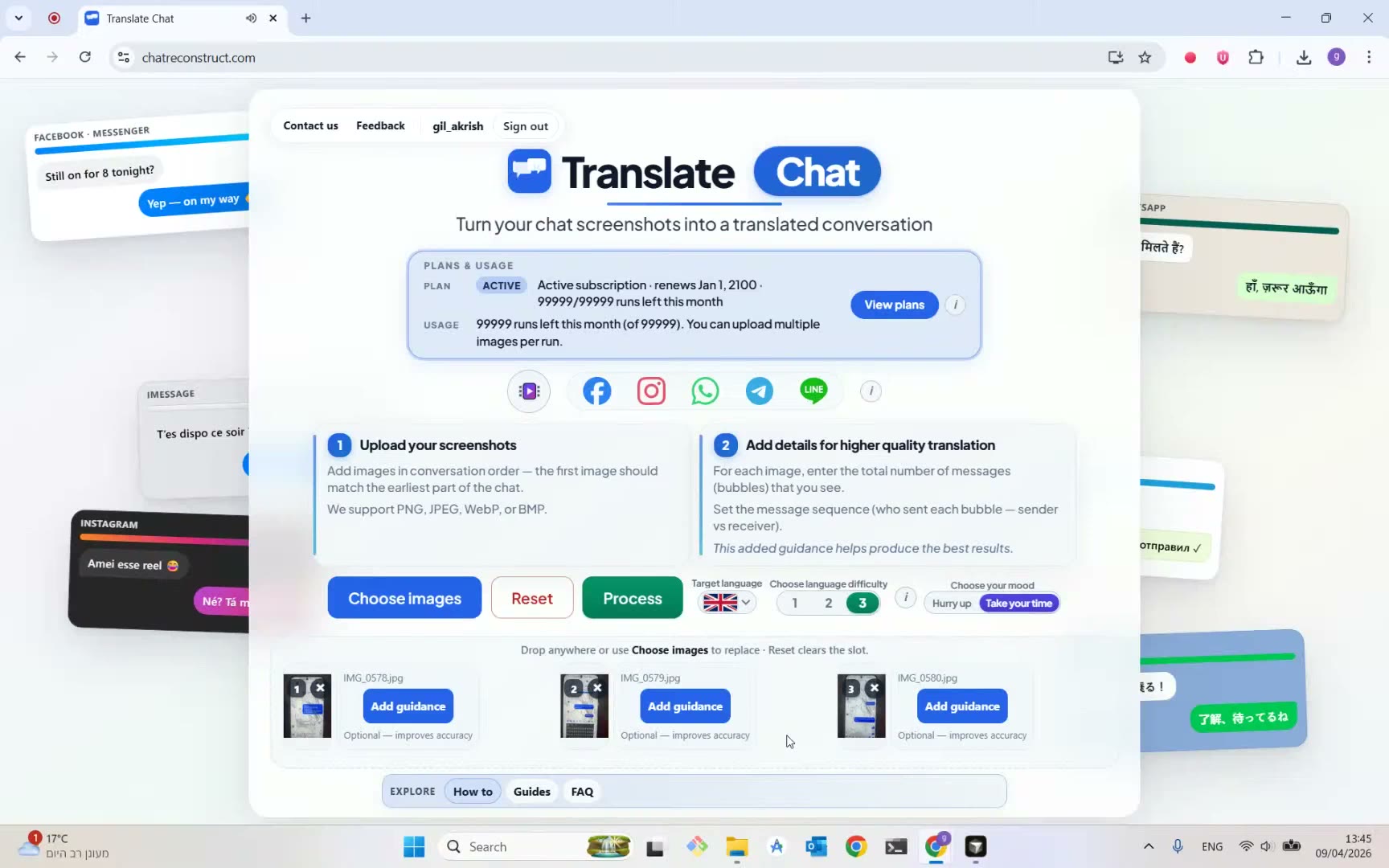 Add guidance to each screenshotWatch how to open Add guidance on each screenshot and set bubble counts plus sender versus receiver order before Process.
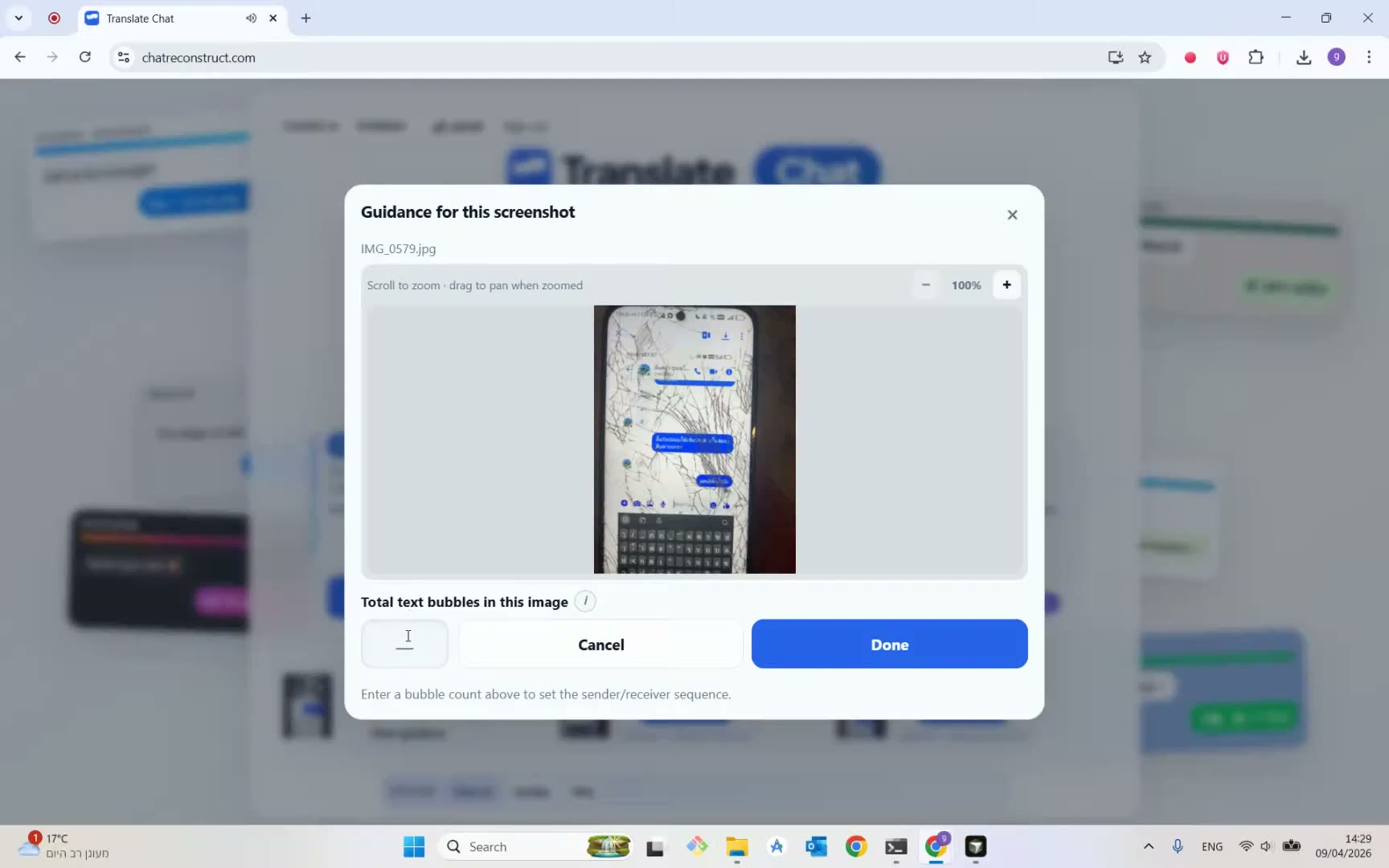 Add guidance — close-upA closer look at the Add guidance controls: message-bubble count and the sender/receiver sequence for one screenshot.
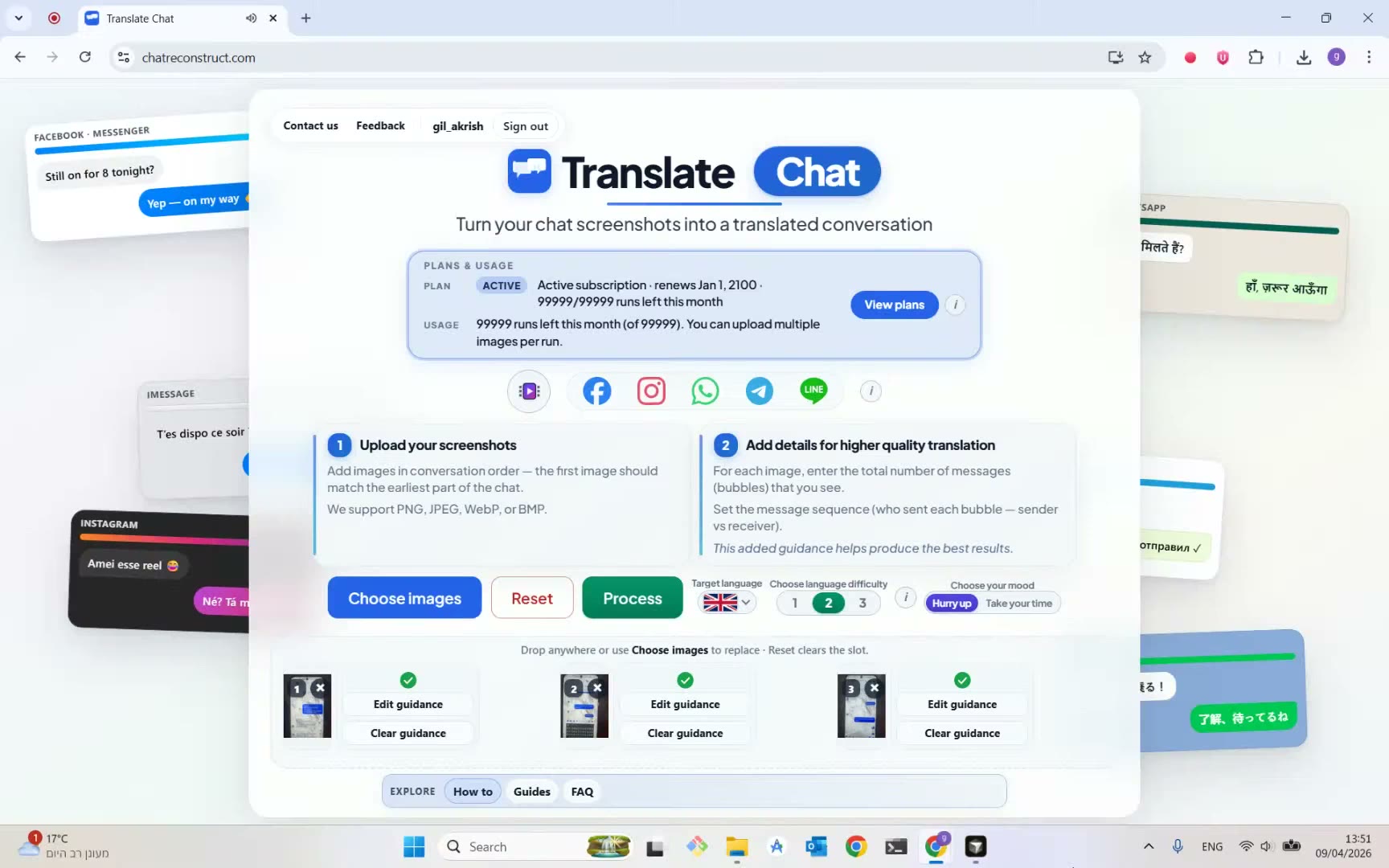 Configure translation settingsWatch how to set target language, difficulty (1–3), and optional mood on Translate Chat before running Process.
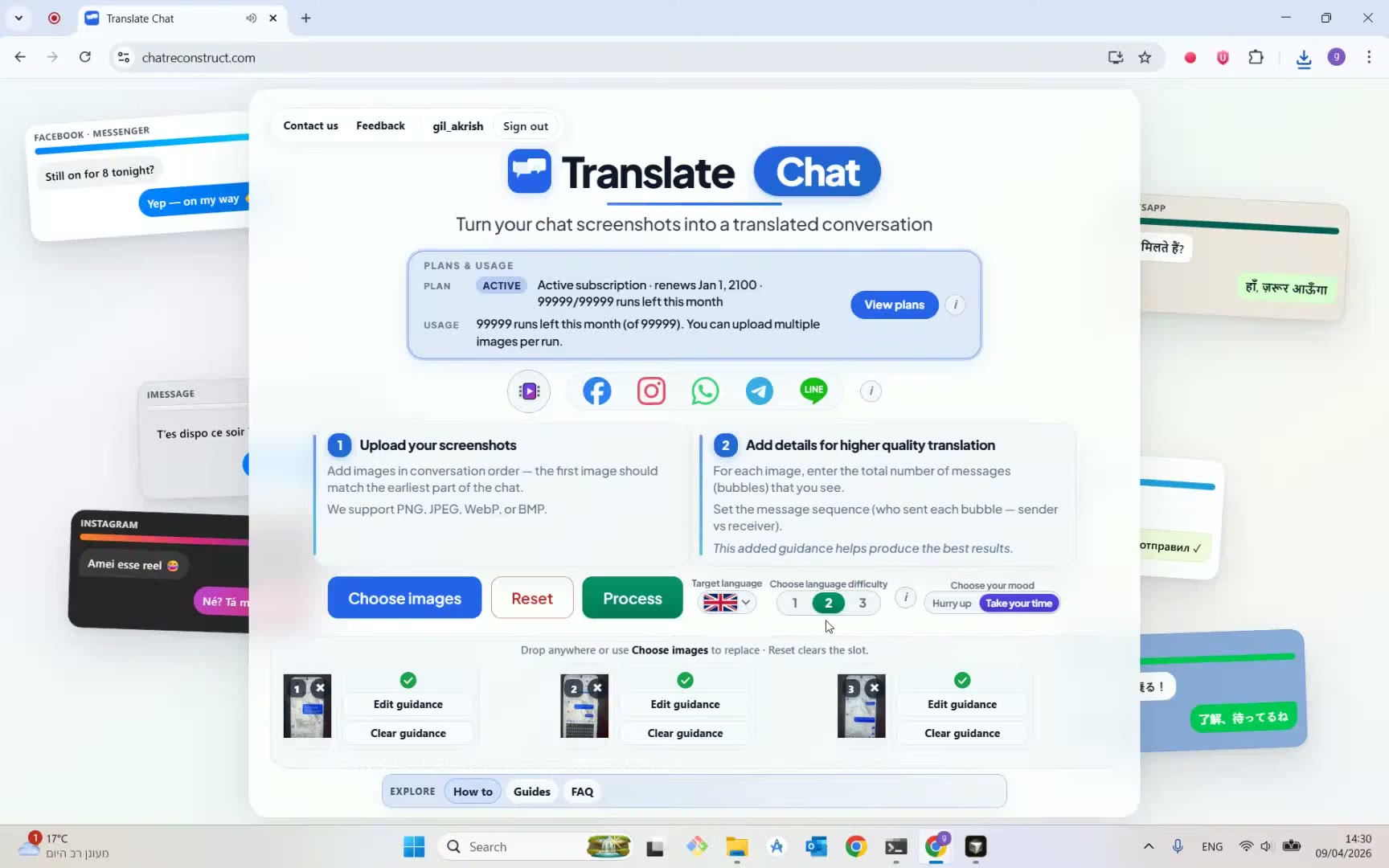 Configure settings — close-upA closer look at language, difficulty, and mood controls that steer the screenshot translation pipeline.
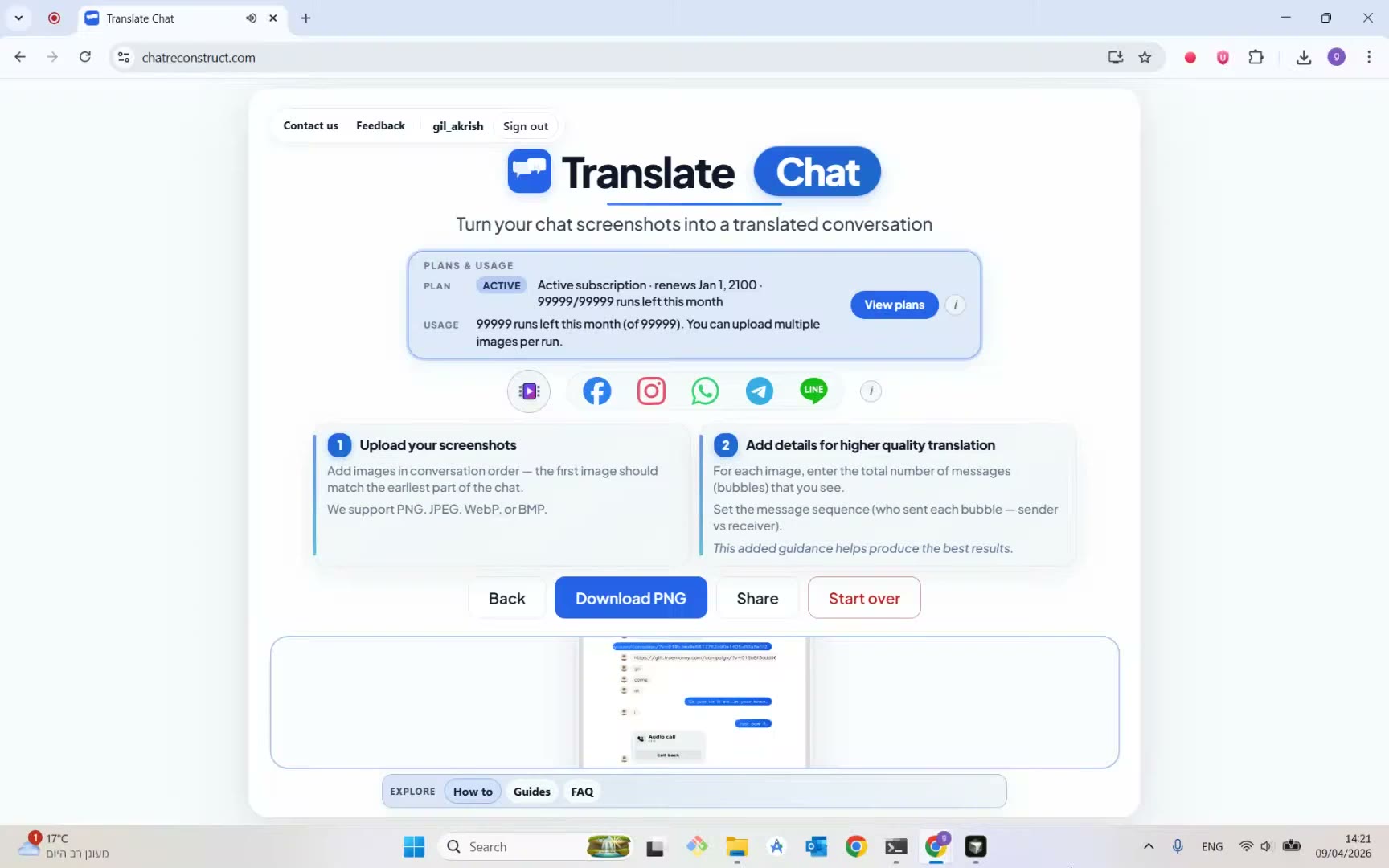 View and download the resultWatch how to open the translated conversation full size, download the PNG, or go back to adjust guidance and run again.
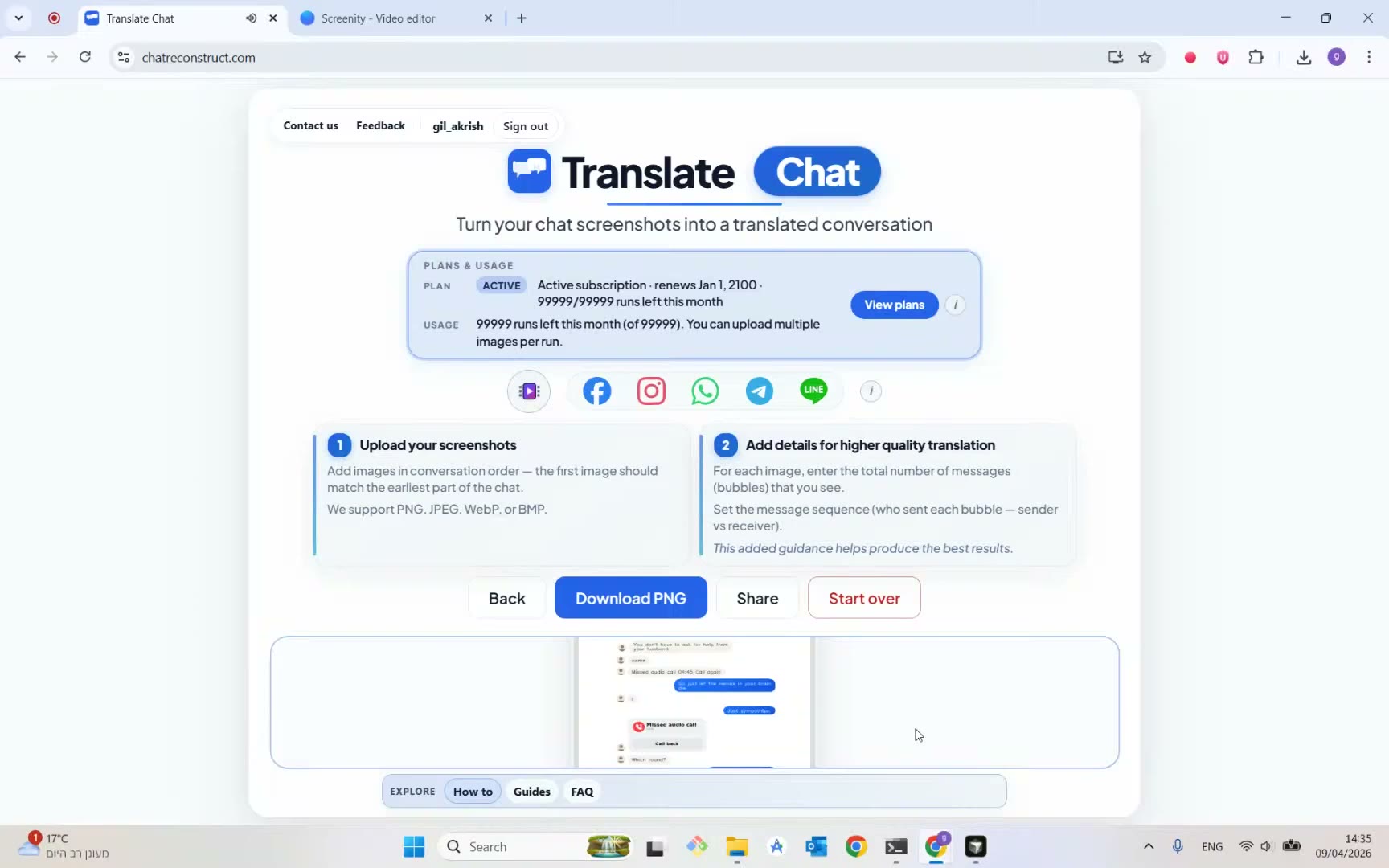 View result — close-upA closer look at the translated chat image result: expand, download, and return to the upload slot.
Prefer written steps? Open the how-to guide.